

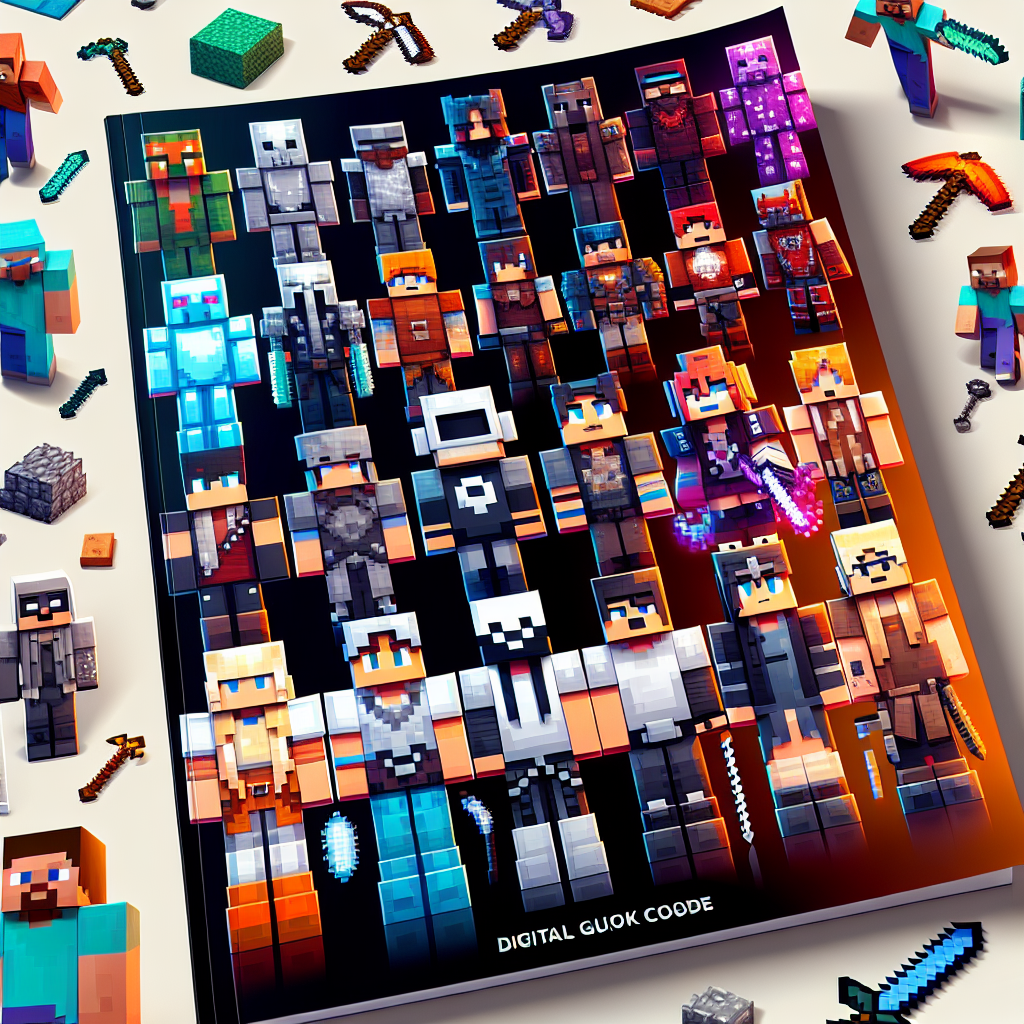
Ultimate Guide to Downloading Minecraft Skins: Customize Your Avatar Easily
Minecraft, a beloved sandbox game, offers players unprecedented creative freedom. One of the ways to personalize the game is by customizing avatars with unique skins. This guide provides everything you need to know about downloading Minecraft skins, ensuring your character stands out in both single-player and multiplayer environments.
Why Customize Your Minecraft Avatar?
Customizing your Minecraft avatar not only personalizes your gaming experience but also enhances your interactions with other players. Here’s why you should consider using custom skins:
- Uniqueness: Stand out from the crowd with a skin that reflects your personality.
- Creativity: Express your artistic side with designs that range from minimalist to intricate.
- Community Engagement: Join the vast community of Minecraft creators and fans by sharing your unique creations.
How to Download Minecraft Skins
Step 1: Choose a Reputable Source
The first step in downloading Minecraft skins is selecting a reputable source. Here are some highly rated websites:
- MinecraftSkins.com: Known for its vast library and user-friendly interface.
- NameMC.com: Offers trending skins and allows you to see what your friends are wearing.
- Skindex: Known for its extensive collection and easy-to-use search functionality.
Step 2: Search for Your Desired Skin
Use the website’s search bar to find a skin that suits your style. Popular categories include:
- Video Game Characters: Icons from games like Mobile Legend and Super Mario.
- TV and Movies: Characters from popular shows and films.
- Abstract Designs: Unique patterns and imaginative concepts.
Step 3: Download the Skin
Once you’ve decided on a skin, follow these steps:
- Click on the Skin: This usually opens a preview page.
- Download the File: Look for a “Download” button, which will save the PNG file to your device.
Step 4: Apply the Skin in Minecraft
Applying your new skin depends on the version you are playing:
Minecraft: Java Edition
- Access Minecraft Launcher: Open the launcher on your computer.
- Go to the Skins Tab: Located in the top menu.
- Add New Skin: Click “New skin,” then “Browse,” and select the PNG file you downloaded.
- Save and Use: Save your changes and enjoy your new look in the game.
Minecraft: Bedrock Edition
- Open Minecraft App: Access the game on your mobile or console.
- Edit Character: Navigate to the Dressing Room or Skin Editor.
- Import Skin: Click on “Owned,” select “Import,” and choose your saved skin file.
- Equip the Skin: Confirm and apply your new skin.
Tips for Customizing Your Minecraft Skin
- Create Your Own Skin: Use online editors like SkinCraft for bespoke designs.
- Stay Updated: Trends change, so regularly explore popular sites for new inspiration.
- Backup Your Skins: Save copies of your favorites in a dedicated folder.
Troubleshooting Common Issues
Skin Not Appearing
- File Format: Ensure the skin is a PNG file.
- Internet Connection: Verify your connection and try reapplying the skin.
Skins Not Syncing Between Devices
- Check Logins: Ensure you are using the same Mojang or Microsoft account.
- Enable Syncing: In settings, check if syncing skins is enabled.
Conclusion
Downloading and customizing Minecraft skins is a straightforward process that enhances your gaming experience. By following this guide, you can easily find, download, and apply a wide array of skins, ensuring your avatar represents you in the vast, blocky world of Minecraft. Happy customizing!
By embracing creativity and leveraging the resources available, you can make your Minecraft avatar truly unique. Enjoy transforming your gaming experience one skin at a time!