

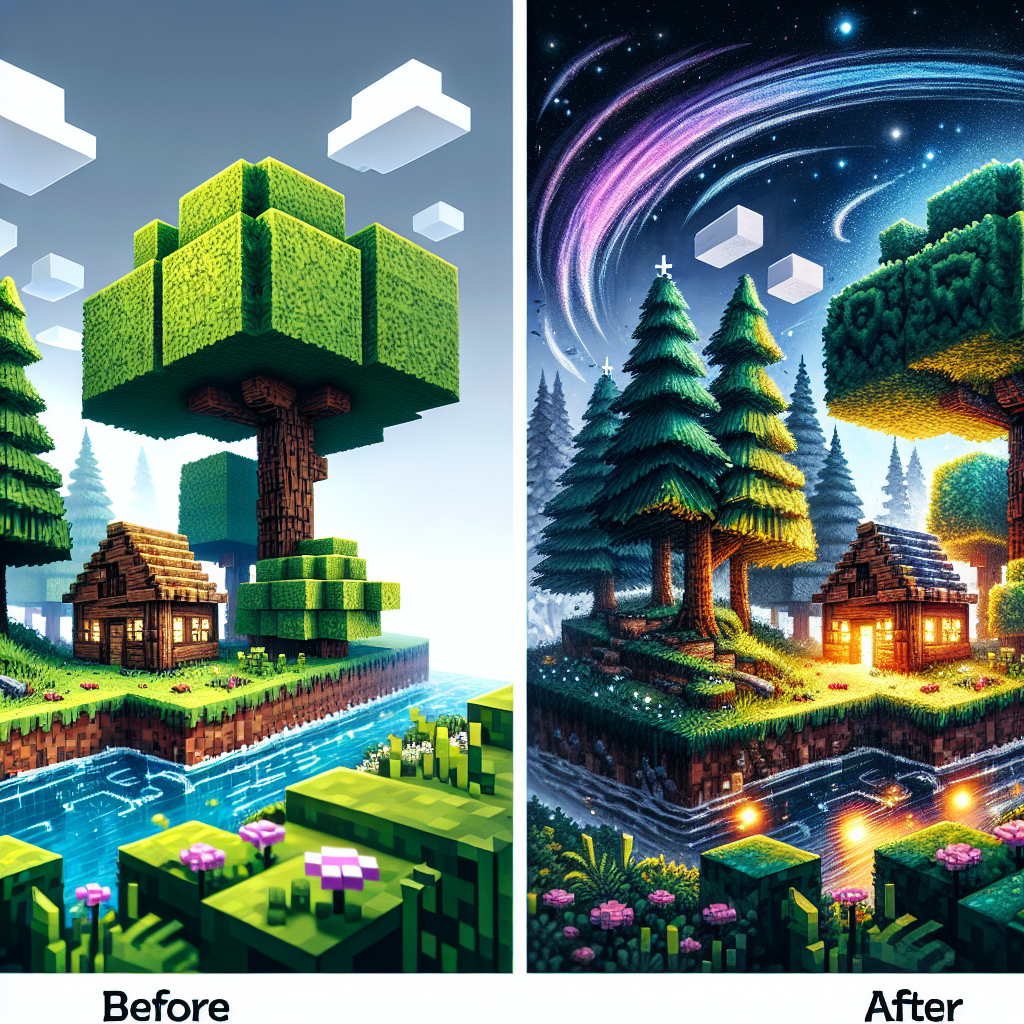
Ultimate Guide to Elevating Your Minecraft Experience with Texture Packs
As one of the most popular sandbox games of all time, Minecraft offers endless possibilities for creativity and exploration. Yet, for many players, the default graphics may feel a bit simplistic. Enter texture packs—a fantastic way to revamp your Minecraft experience. This ultimate guide will walk you through everything you need to know about texture packs, from installation to the best options available, ensuring your gaming experience becomes more engaging and visually stunning.
What are Texture Packs in Minecraft?
Texture packs, also known as resource packs, are modifications to the game that change the appearance of blocks, items, and UI elements. They allow players to customize the aesthetics of the game without altering its core mechanics. Texture packs can range from minor tweaks to complete overhauls, transforming the game’s look and feel to suit a player’s personal taste.
Benefits of Using Texture Packs
-
Enhanced Visual Appeal: Texture packs can significantly improve the visual quality of the game, providing more realistic textures, vibrant colors, and detailed designs.
-
Personalization: With countless texture packs available, you can personalize Minecraft to reflect your unique style, whether that means a medieval theme, futuristic vibe, or cartoon-like appearance.
-
Improved Gaming Experience: By refreshing your visual experience, texture packs can rejuvenate your love for the game and offer a fresh perspective, making gameplay more immersive.
- Performance Optimization: Some texture packs are designed to improve performance on lower-end devices by providing simpler textures that reduce lag.
How to Install Texture Packs
Step 1: Download a Texture Pack
Begin by browsing reputable websites such as Planet Minecraft, CurseForge, or the official Minecraft website for texture packs. Ensure that the pack you choose is compatible with your version of Minecraft.
Step 2: Locate the Minecraft Resource Pack Folder
- Open Minecraft: Launch the game and click on ‘Options.’
- Access Resource Packs: Click on ‘Resource Packs’ and then on ‘Open Resource Pack Folder.’ This will open your file explorer to the folder where texture packs are stored.
Step 3: Install the Texture Pack
- Move the File: Drag and drop the downloaded texture pack file (usually in .zip format) into the resource pack folder.
- Select the Texture Pack: Go back to Minecraft and in the ‘Resource Packs’ menu, you should see your newly installed pack listed. Click the arrow button to activate it.
Top Texture Packs to Enhance Your Game
1. Sortex Fanver
Soartex Fanver offers a smooth, clean, and detailed visual experience. It’s perfect for players seeking a balance between realistic textures and vibrant, playful colors.
2. Faithful
Faithful retains the original Minecraft look but enhances the resolution. It’s ideal for players who love the default aesthetic but crave a more polished appearance.
3. Sphax PureBDCraft
This pack transforms the game into a unique, comic book-inspired world with cel-shaded art. It’s a great option for players who enjoy bold colors and distinctive designs.
4. Conquest
Conquest is perfect for medieval setting enthusiasts. It retexturizes the game with detailed, rustic visuals that are perfect for building castles and historical structures.
5. John Smith Legacy
This texture pack provides a rural, medieval vibe with intricate details and rustic charm, ideal for those who love building traditional villages and ancient architectures.
Customizing Texture Packs
If you’d like to tweak a texture pack to better fit your preferences, many packs allow basic customization. You can use graphic editing software such as GIMP or Photoshop to alter textures. Remember to save your changes and rezip the files if necessary.
Troubleshooting Common Issues
-
Incompatible Version: Always ensure that the texture pack matches your Minecraft version.
-
Game Crashing: Reduce the resolution of the texture pack, or opt for a lighter version if your hardware struggles with high-resolution textures.
- Textures Not Loading: Verify that the texture pack is properly placed in the resource pack folder, and reload the resource packs in the game.
Conclusion
Texture packs offer an exciting way to enhance and personalize your Minecraft experience, adding new dimensions of visual enjoyment to the game. By following this guide, you’ll be well on your way to discovering the perfect texture pack that suits your gaming style, making your adventures in Minecraft more captivating than ever. Dive in, explore the possibilities, and transform your virtual world today!